Orders & Positions
Overview
After placing trades, you monitor and manage them from the panel at the bottom of the Trading screen. This panel has five tabs: Positions, Open Orders, Trade History, Order History, and Funding — plus an "Ask about..." AI agent and a Trade Settings menu.
Q: Where do I see my currently open trades?
A: Click the Positions tab. Each open position shows symbol, direction, size, entry price, current price, and running P&L. If no trades are open, the panel displays "No open positions" — unchanged wording from the previous documentation.
Q: How do I view pending orders — including Stop and Stop-Limit orders?
A: Switch to the Open Orders tab. All pending orders — Limit, Stop, and Stop-Limit — are listed here with their trigger/limit price(s), size, and creation time. (The previous documentation only mentioned Limit orders in this tab because Stop and Stop-Limit did not exist yet — see Placing Trades.) If nothing is pending, the panel shows "No open orders."
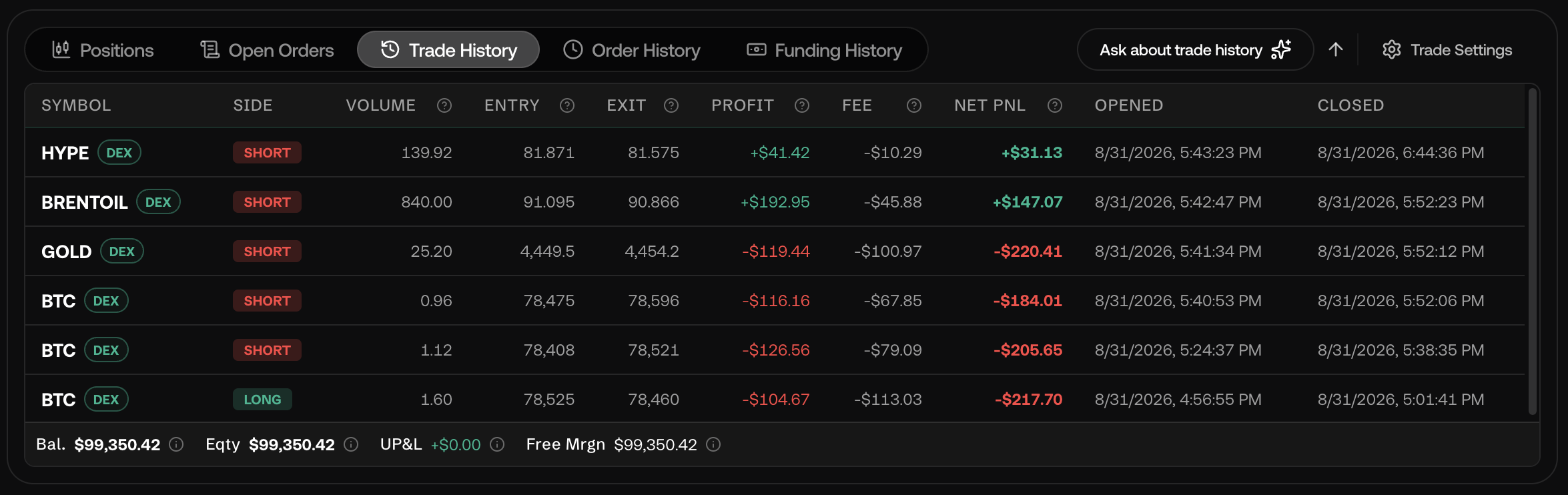
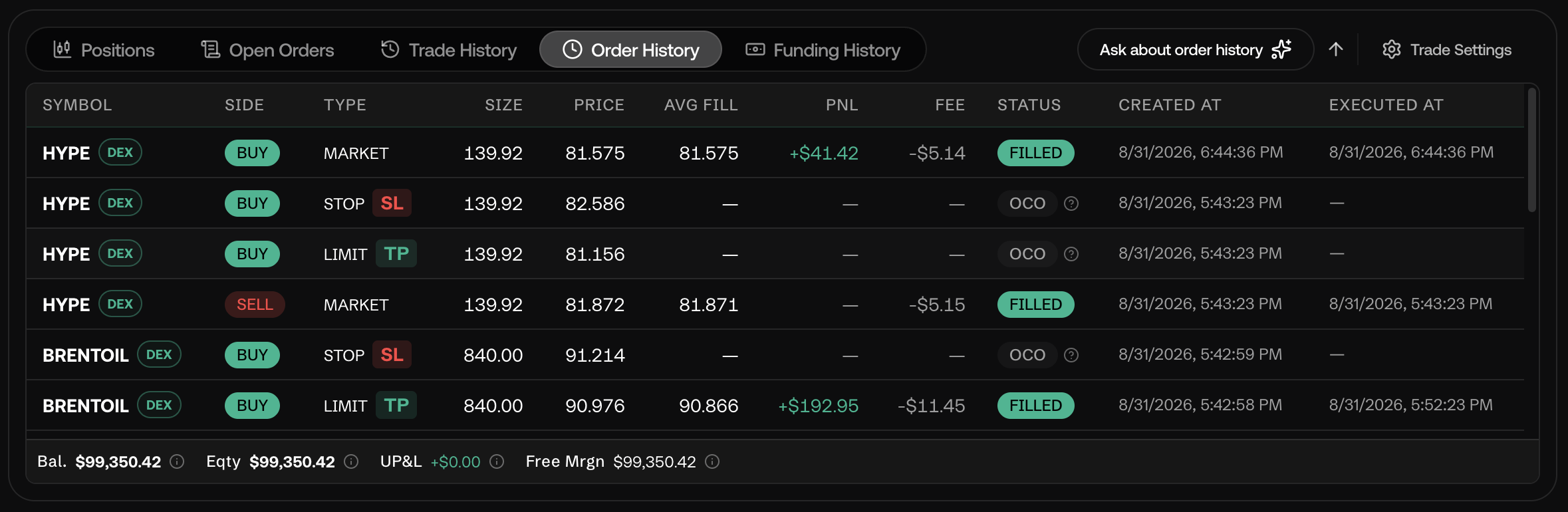
Q: What's the difference between Trade History and Order History?
- Trade History — a log of closed round-trip trades: Symbol, Side, Volume, Entry, Exit, Profit, Fee, Net PNL, Opened, Closed.
- Order History — a log of every order event regardless of whether it resulted in a trade: Symbol, Side, Type (MARKET/LIMIT/STOP/STOP LIMIT), Size, Price, Avg Fill, PNL, Fee, Status (e.g., FILLED, CANCELLED), Created At.
Use Trade History to review completed trades' P&L; use Order History to audit exactly what orders you placed, including ones that were cancelled or never filled.
Q: How do I close an open position?
A: In the Positions tab, locate the position and click its Close control (the previous documentation's guidance to close from an "×" icon on the Positions row, or from an "X" icon directly on the chart, both still apply). Execution happens at the current market price. For instruments that support it, you can specify a partial lot amount to close.
Q: How do I cancel a pending order (including a Stop or Stop-Limit order)?
A: Go to the Open Orders tab and use the Cancel control next to the order you want to remove. Cancelled orders appear in Order History with a CANCELLED status.
Q: Can I modify a TP or SL on an already-open position?
A: Yes — in the Positions tab, click the TP or SL value of an open position to edit it directly, or drag the TP/SL lines on the chart. Changes take effect immediately. Unchanged from the previous documentation.
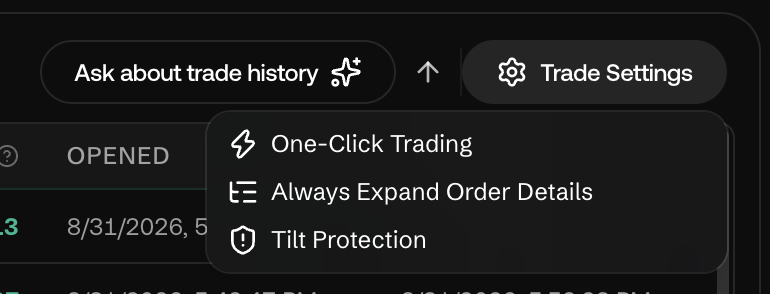
Q: What is "Trade Settings" (the gear icon next to the tabs)?
A: New since the previous documentation. It's a small menu with three togglable options:
- One-Click Trading — skip the confirmation step and submit orders immediately.
- Always Expand Order Details — keep the Order Panel's Details breakdown (Size, Notional Value, Fees, Leverage, etc.) expanded by default.
- Tilt Protection — a trading-behavior safeguard. Exact enforcement wasn't exercised while writing this documentation; check the in-app description before relying on it, and see Trader Score for the related behavioral-scoring feature.