Placing Trades
Overview
This section explains how to open, configure, and execute trades using the Order Panel on the right side of the Trading screen.
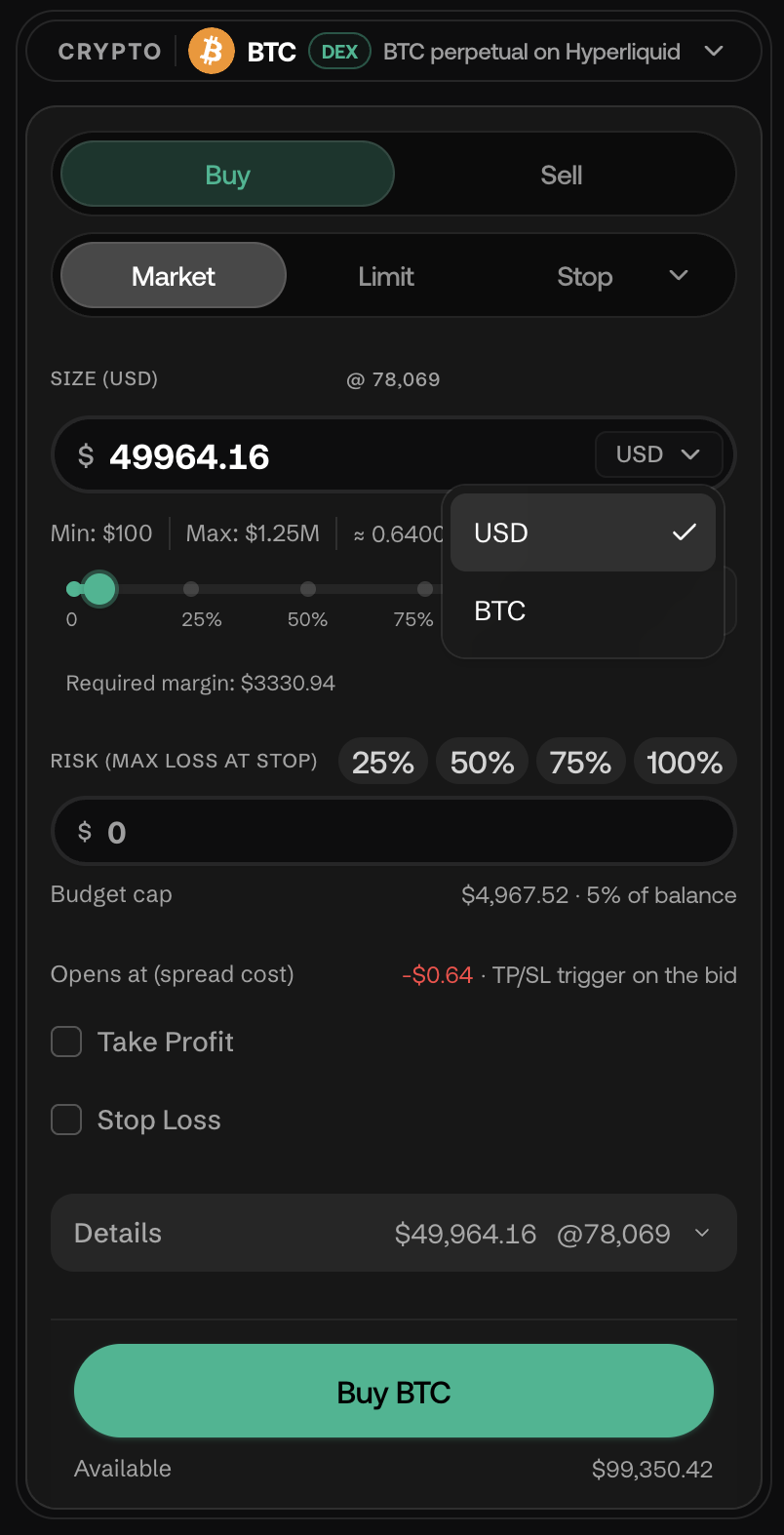
Q: How do I place a Market Order?
A: In the Order Panel, select Buy or Sell at the top, then make sure Market is selected as the order type. Set your desired size under SIZE (USD) — you can type a dollar amount directly, use the quick-percent slider (0–100% of buying power), or switch the currency toggle next to the field. The panel shows the live lot-equivalent (e.g. "≈ 0.04090 BTC") and the current reference price. Optionally toggle on Take Profit and/or Stop Loss, then click Buy <SYMBOL> (or Sell <SYMBOL>) to execute immediately at the current market price.
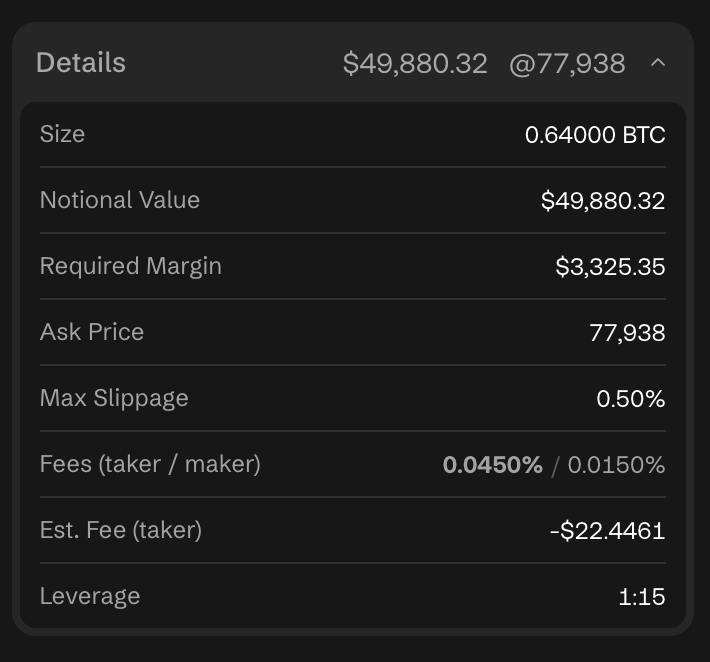
Before you submit, the Details panel (expand it if collapsed) shows exactly what the order will cost: Size, Notional Value, Required Margin, Max Slippage, taker/maker Fees, Estimated Fee, and Leverage — all live, before you click.
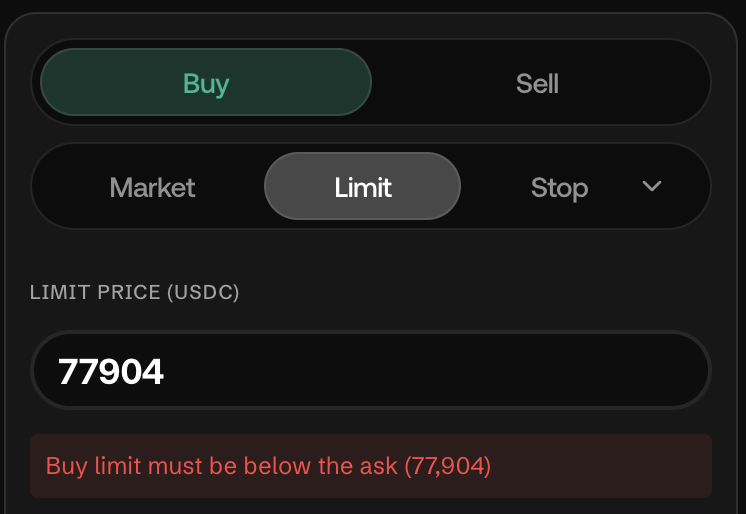
Q: How do I place a Limit Order?
A: Select Limit in the order-type row. A LIMIT PRICE field appears — enter the price you want to fill at. A validation message appears inline if the price is on the wrong side of the market — for example, "Buy limit must be below the ask (77,904)" for a buy limit, or the mirror-image message for a sell limit, which must sit above the current bid. Set your size, optional TP/SL, and click Buy or Sell. The order stays pending until the market reaches your price.
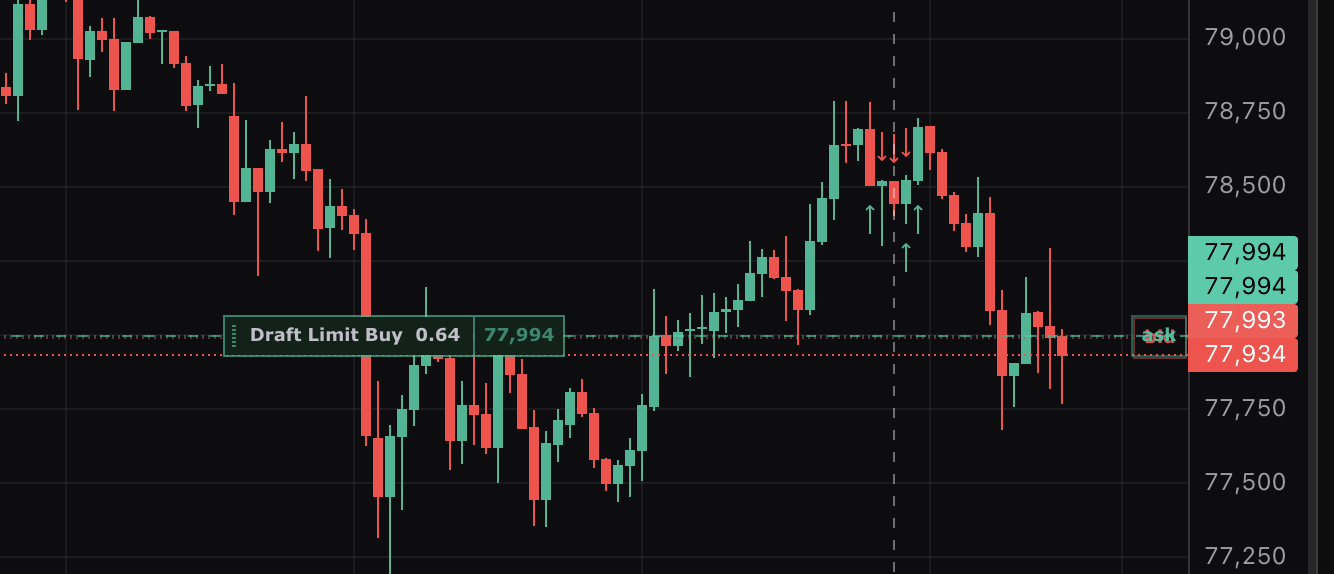
As you type, a draft order line is drawn directly on the chart (e.g. "Draft Limit Buy 0.64 @ 77,994") so you can see exactly where the order will sit relative to price action before you submit.
Q: What is "Size (USD)" and how do I set it?
A: Size (USD) is the notional size of your trade, denominated in dollars (a currency toggle next to the field lets you switch units). Type an amount directly, or use the quick-size slider beneath it (0–100%). The panel enforces a Min and Max per instrument (for example, Min: $100 / Max: $1.25M on BTC perpetual at the time of writing) and continuously converts your USD size into the equivalent lot/coin amount. Limits vary by symbol (crypto perpetuals, XAUUSD, WTI, DOW, etc. all have their own min/max and leverage).
Q: What is "Risk (Max Loss at Stop)"?
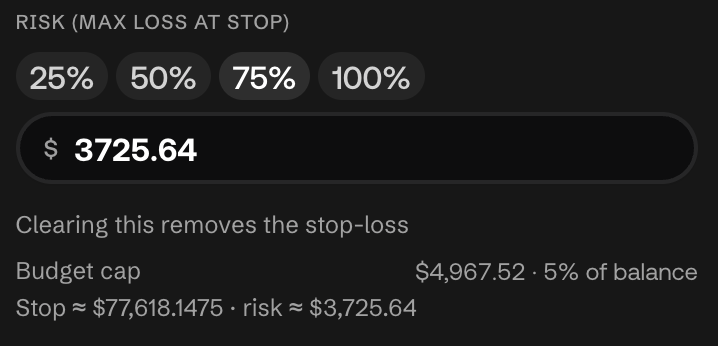
A: This is a sizing helper shown on every order type. It estimates the dollar loss you'd take if the position were stopped out, and offers 25% / 50% / 75% / 100% quick buttons plus a manual dollar field, measured against a Budget cap (a percentage of your account balance, e.g. "$4,967.52 · 5% of balance"). Use it to size a trade to a specific risk tolerance instead of eyeballing lot size.
Q: How do I set a Take Profit (TP) and Stop Loss (SL)?
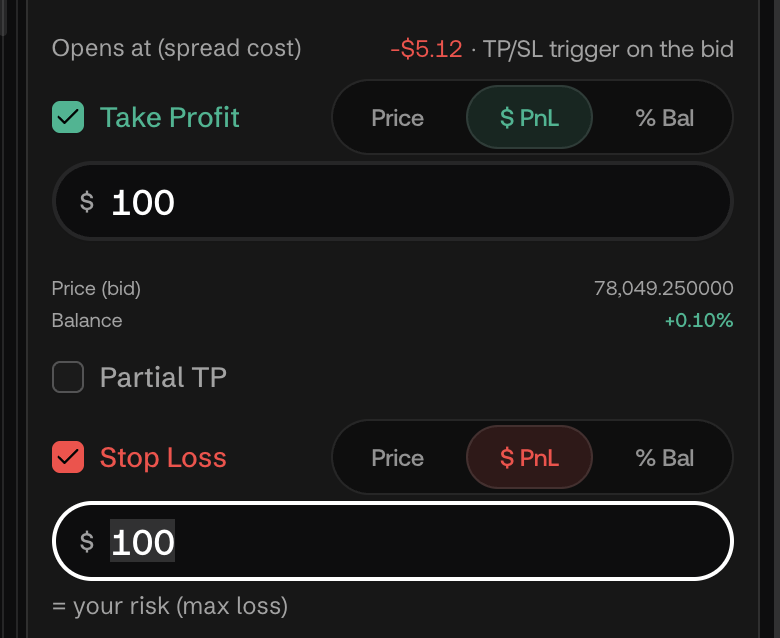
A: Below the size and risk fields, toggle on Take Profit and/or Stop Loss independently. Each one lets you enter the trigger three ways — Price, $ PnL, or % Bal — using the small tab selector above the input. Each also has its own Partial TP / Partial SL checkbox for closing only part of the position at that level. Both TP and SL are optional but strongly recommended for risk management.
Q: Can I see my available funds and the full cost breakdown before placing a trade?
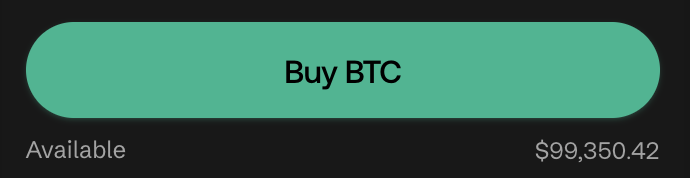
A: Yes. At the bottom of the Order Panel, Available (for example, "Available: $93,630.45") shows your current free margin — updated in real time. Above that, the expandable Details panel breaks out Size, Notional Value, Required Margin, Max Slippage, taker/maker Fees, Estimated Fee, and Leverage for the order as configured, before you submit.
Q: How do I quickly buy or sell without changing settings?
A: The Buy <SYMBOL> / Sell <SYMBOL> button reflects your current side and order type; for a Market order it fills at the live Ask/Bid shown at the top of the symbol header. As long as Size is set (and, for Limit/Stop/Stop-Limit orders, the price fields are valid), a single click submits the order.
Stop and Stop-Limit orders
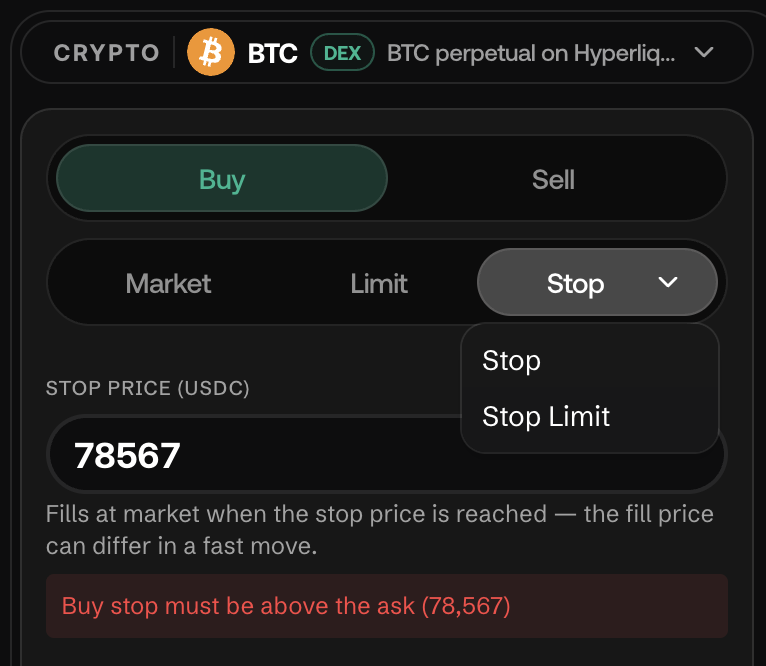
Two additional order types live under the same row as Market and Limit: click the small chevron next to Stop to choose between Stop and Stop Limit.
Stop orders (stop-market)
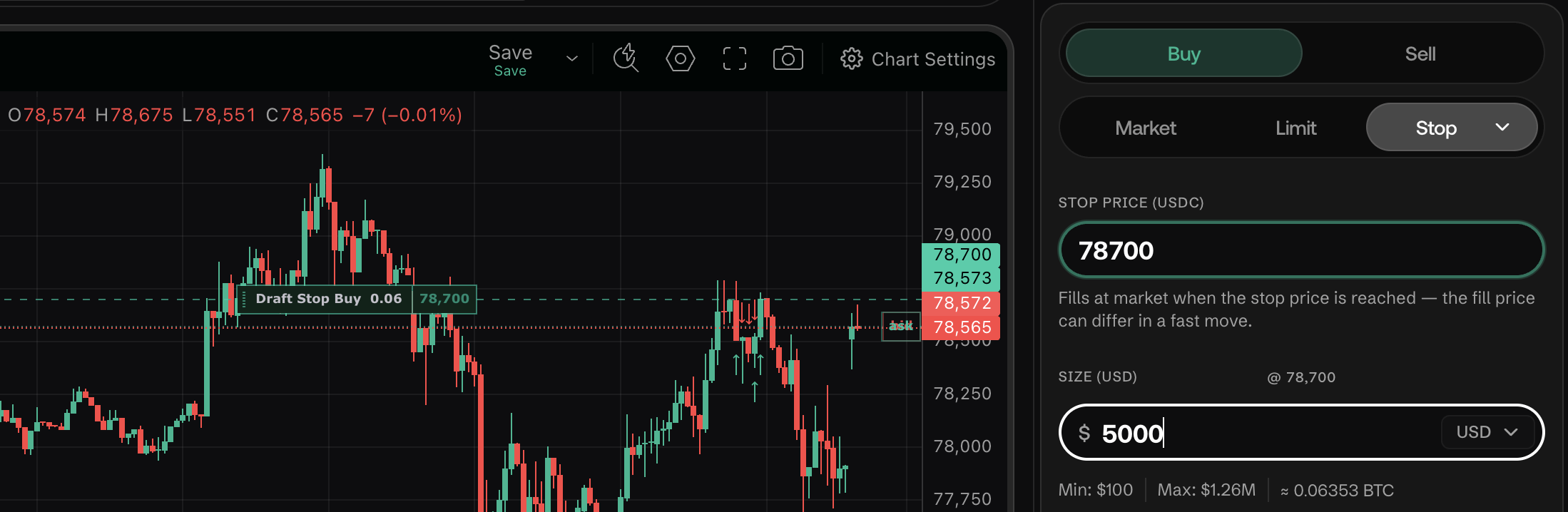
A Stop order rests untriggered until the market trades through your chosen Stop Price, at which point it fires as a market order.
Q: How do I place a Stop order?
A: Select Buy or Sell, choose Stop from the order-type row, and enter a STOP PRICE. The panel shows a plain-language reminder under the field: "Fills at market when the stop price is reached — the fill price can differ in a fast move." Set your size (Size (USD), same as Market/Limit), optional Take Profit/Stop Loss, and submit.
Q: What determines which side of the market my stop price must be on?
A: The panel validates this live and blocks submission until it's satisfied:
- A sell stop must be below the current bid — the panel shows: "Sell stop must be below the bid (
<price>)." - A buy stop must be above the current ask — the panel shows: "Buy stop must be above the ask (
<price>)."
This is the standard behavior for a protective/breakout stop: a sell stop sits below price to cap a loss on a long (or to open a short on a breakdown), and a buy stop sits above price to cap a loss on a short (or to open a long on a breakout).
Stop-Limit orders
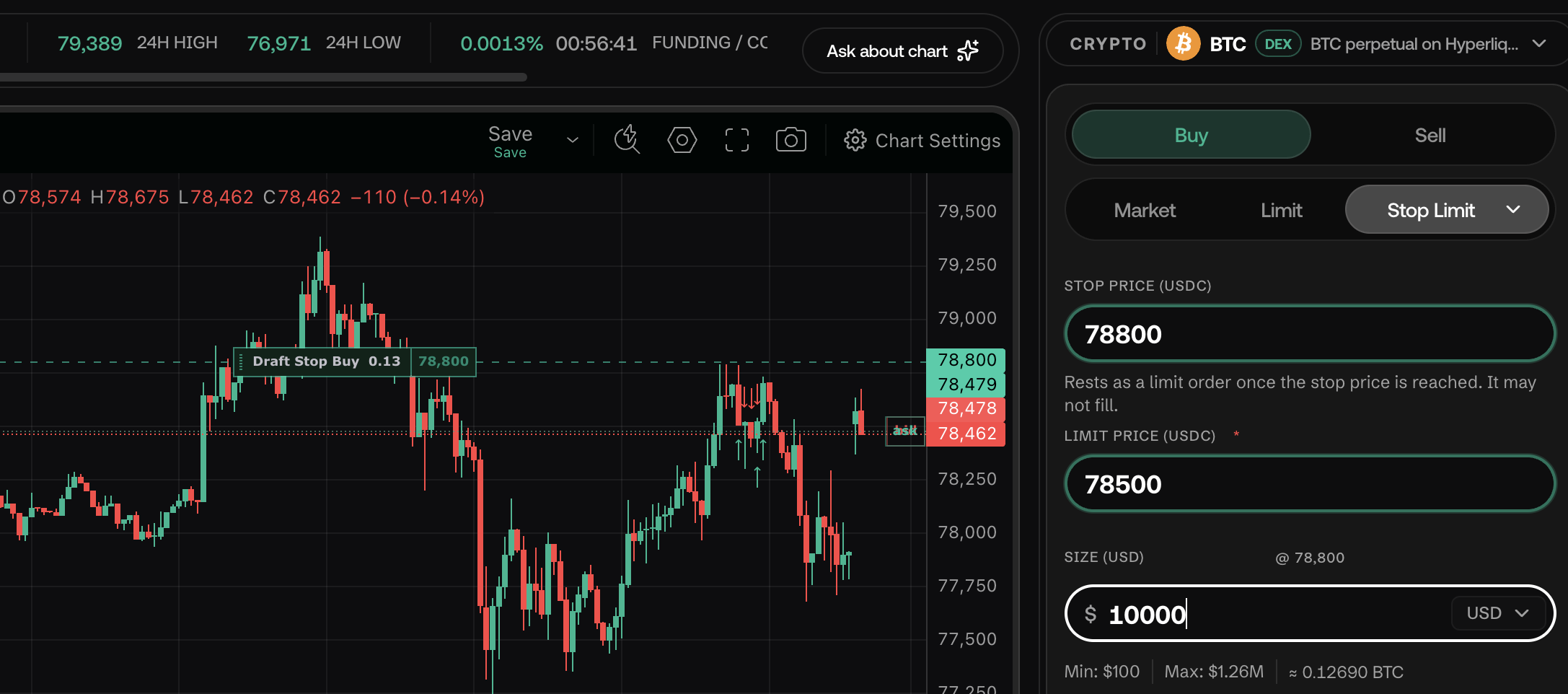
A Stop Limit order also waits for your Stop Price to trigger, but instead of firing as a market order it rests as a Limit order at a Limit Price you set separately.
Q: How do I place a Stop-Limit order?
A: Choose Stop Limit from the order-type dropdown. Two price fields appear:
- STOP PRICE (USDC) — the trigger price. Helper text: "Rests as a limit order once the stop price is reached. It may not fill."
- LIMIT PRICE (USDC) — required. If you leave it empty, the panel shows a warning: "A stop-limit needs a limit price — without one this is a stop-market and fills at whatever the trigger walk returns."
The same bid/ask-side validation as a plain Stop order applies to the Stop Price (buy stop above the ask, sell stop below the bid). Once both prices are valid, the Buy/Sell <SYMBOL> button activates.
Q: Why would I use Stop-Limit instead of a plain Stop?
A: A plain Stop guarantees you get filled once triggered, but at whatever price the market is at (which can be worse than your stop in a fast move — "slippage"). A Stop-Limit caps the worst price you'll accept (the Limit Price) but, as the in-app warning states, it may not fill at all if price gaps or runs past your limit before it can execute. Use Stop for "I must be out/in, price is secondary." Use Stop-Limit for "I want out/in only within this price band."
Q: Do Stop and Stop-Limit orders support Take Profit, Stop Loss, and the Risk sizing helper?
A: Yes — Size (USD), the Risk (Max Loss at Stop) helper with its Budget cap, and the Take Profit/Stop Loss toggles all work the same way on Stop and Stop-Limit orders as they do on Market and Limit orders.
Q: Where do I see a Stop or Stop-Limit order once it's placed?
A: Pending Stop and Stop-Limit orders appear in the Open Orders tab of the bottom panel, and every state change (placed, triggered, filled, cancelled) is logged in Order History. See Orders & Positions.