Getting Started
Overview
This section covers the basics of accessing and navigating the E8 Markets Trading Terminal — account types, login, and the main interface layout.
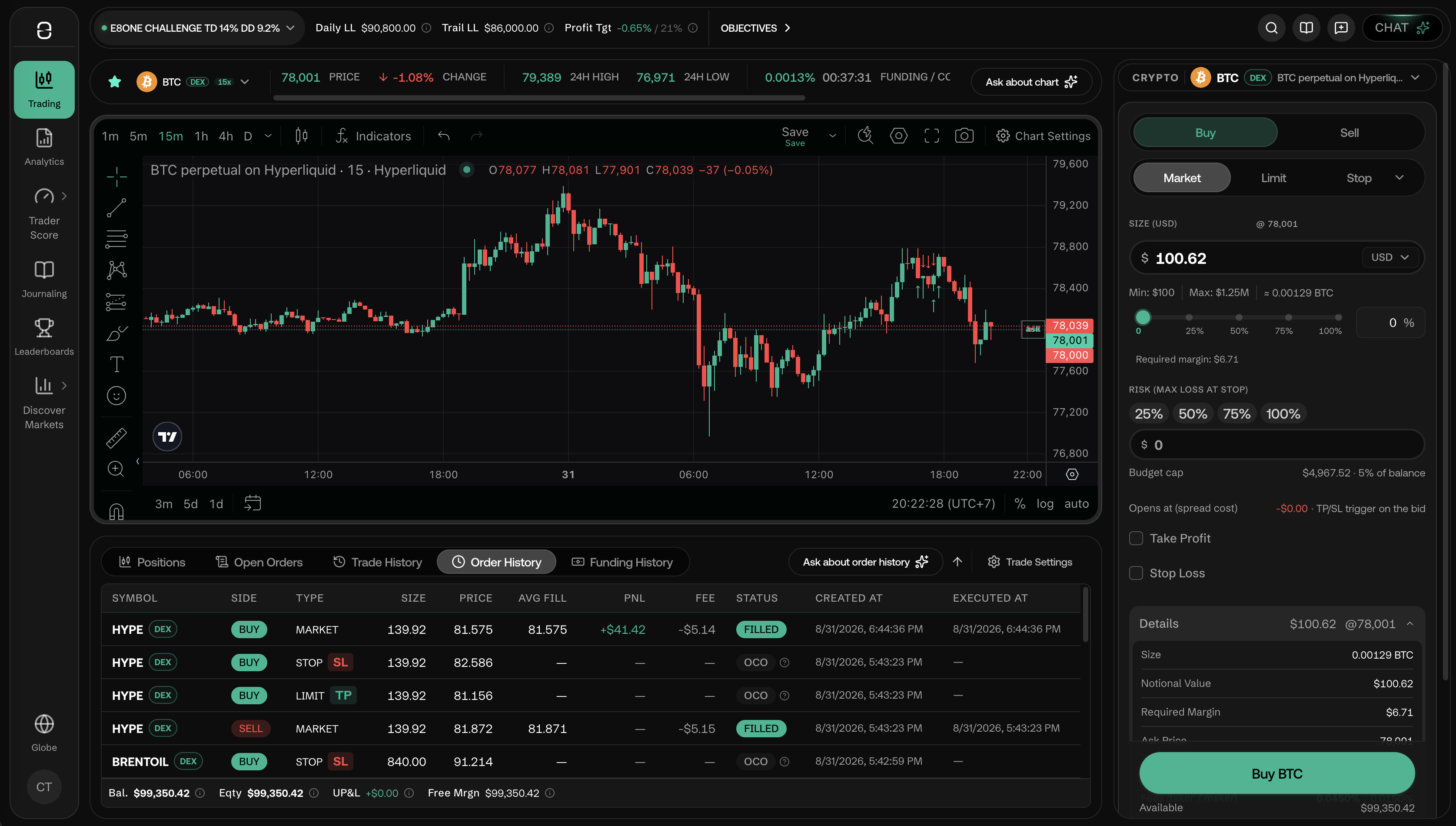
Q: What is the E8 Markets Trading Terminal?
A: The E8 Markets Trading Terminal is a professional web-based platform for trading Forex, Stocks, Futures, Crypto, and CFDs. It runs entirely in your browser — no download needed — and provides real-time charts powered by TradingView, a full order panel, account analytics, and community tools.
Simulated Finance and E8 Markets are the bridge. We provide the simulated capital; you provide the skill. We are a training ground, the trading cockpit where you can test, fail, and see your progress with crystal clear data feedback. At E8, we do not just provide a testing platform — we reward proven performance.
Q: What account types are available?
A: All accounts at E8 Markets are demo accounts within a simulated environment powered by real market data. This applies to all accounts, including SimFi™ Challenge accounts (Phase-1) and SimFi™ Performance accounts (After you reach the profit target in the Challenge stage).
Your journey starts with the SimFi™ Challenge account, where you demonstrate your ability to follow specific safety guardrails and operate within the guidelines.
After you demonstrate that and complete the profit target, you are moving to a SimFi™ Performance account.
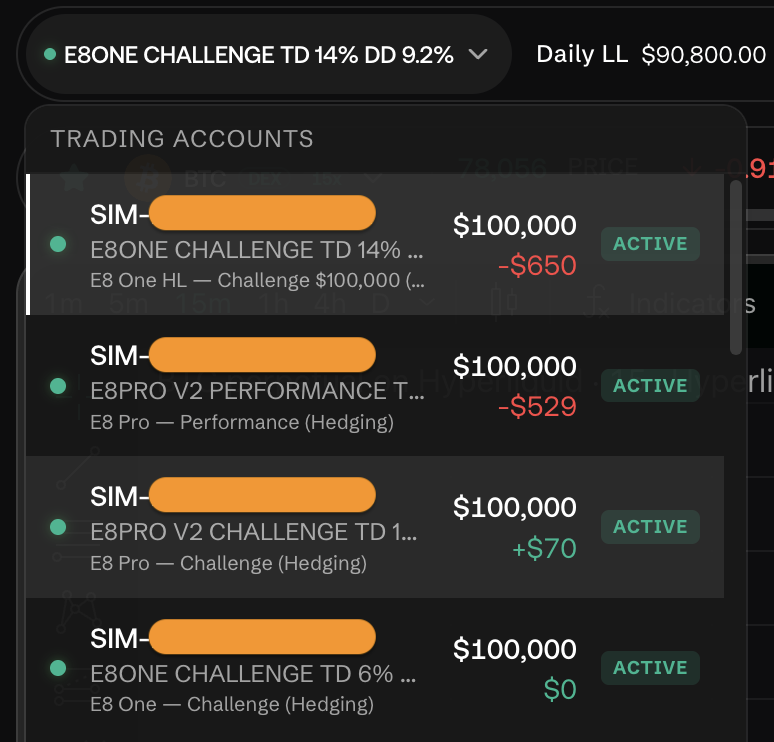
Q: What is my current account ?
Click the account name in the top-left of the header (for example, "E8ONE CHALLENGE TD 14% DD 9.3%") to open the Trading Accounts switcher. It lists every account you have — each shown with its balance, running P&L, badge showing the account status (e.g. ACTIVE ), and the specific program it belongs to (for example, "E8 One — Challenge $100,000", "E8 Pro — Performance", "E8 Pro — Challenge (Hedging)"). Switching accounts changes which chart, positions, and risk numbers you see everywhere else in the terminal.
Q: How do I log in to the terminal?
A: Visit trade.e8markets.com and sign in with your E8 Markets credentials. Once authenticated, you are taken directly to the Trading screen with your active account pre-loaded.
Q: How do I switch between accounts?
A: Click the account name/challenge badge at the top-left of the header to open the Trading Accounts list, then select the account you want. Your current account's identity, balance, and challenge rules (Daily LL, Trail LL, Profit Target) are always visible in the header once selected.
Q: What are the main sections of the terminal interface?
A: The terminal's left sidebar has the following entries:
| Section | What it does | Shortcut |
|---|---|---|
| Trading | Main chart + order panel | G then T |
| Analytics | Performance reporting, overview, calendar, trading journal roll-up | — |
| Trader Score | Execution Quality, Risk Integrity, Session Repeatability, Revenge Control, Regime Robustness | G then A (and per-metric shortcuts, e.g. G E) |
| Journaling | Day / Week / Trades journal with a monthly calendar | G then J |
| Leaderboards | Tournament rankings | G then L |
| Discover Markets | Markets watch (G M), Asset Universe (G U), News Wire (G N) |
— |
| Globe | Global map of trader/PnL activity | G then G |
- Symbol/market browsing lives under Discover Markets → Markets and Discover Markets → Asset Universe.
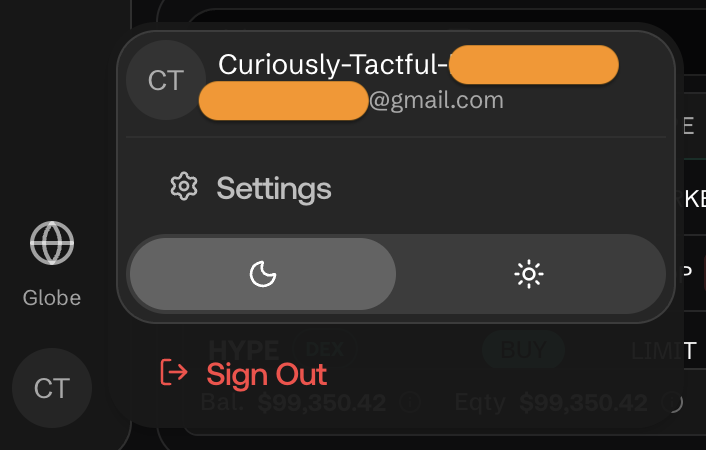
Q: How to open Settings?
A: Settings is reached from the round avatar in the bottom-left corner of the sidebar. The same menu holds the light/dark theme toggle and Sign Out.
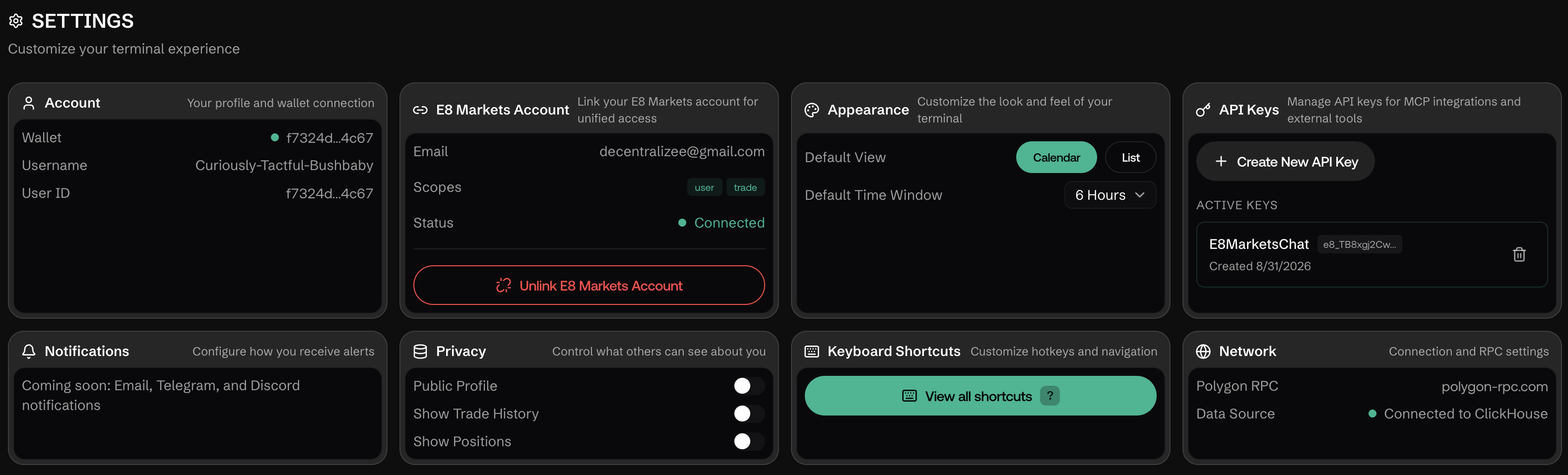
Q: What's in Settings?
A: Settings (avatar → Settings) is organized into cards:
- Account — wallet address, username, user ID.
- E8 Markets Account — linked email, OAuth scopes, connection status.
- API Keys — create and revoke API keys for MCP/automation integrations (see Terminal Access & MCP).
- Appearance — default view (Calendar/List) and default time window for reporting-style pages.
- Notifications — email/Telegram/Discord alerts (marked "Coming soon" at the time of writing).
- Privacy — public profile, show trade history, show positions toggles.
- Keyboard Shortcuts — full shortcut reference.
- Network — RPC endpoint and data-source status.
Q: Where can I find the official documentation and submit feedback?
A: Two icons are always visible in the top header bar, to the left of the CHAT button: an open-book icon (Docs, opens this documentation) and a message icon (Feedback, opens a Typeform survey). A magnifying-glass icon opens Quick Search.
Q: What is the "CHAT" button in the top-right?
A: It opens the Community Chat side panel, where you can see who else is active and post messages to other traders. This replaces the old "Show community chat" text link — same feature, new entry point. See Platform Features.